
A USB-C-shaped port can carry data, accept charging, or send video, but those jobs are not interchangeable. Before buying a dock because a laptop has USB-C, identify the exact port and whether the computer’s documentation says that port supports external display output.
Quick answer
Do not choose a dock from connector shape alone. First find the laptop model’s official port description, then separate three questions: can the port move data, can it accept or provide charging, and can it send video to an external display? Only after the video path is documented should you choose the port mix, Ethernet, USB accessories, and power-delivery arrangement a hub adds.
The three jobs that get confused
| What you need | What it does not prove | What to verify |
|---|---|---|
| USB data for a drive, keyboard, or mouse | That the same port can drive a monitor | Your laptop manual’s external-display or video-alt-mode wording. |
| USB-C charging or PD input | That a display signal is available | Whether the port’s documented role includes video output, and any power limits. |
| An HDMI socket on a hub | That the computer can feed it a usable signal | The complete laptop, dock, cable, monitor, and display-mode path. |
| A dock listing’s maximum display mode | That every host or adapter chain can reach it | The selected host’s documented capability and the complete cable/display chain. |
Use this five-minute port check
- Write down the exact laptop model, not just its brand and screen size.
- Open the manufacturer’s technical specifications or manual and find the language for each USB-C, Thunderbolt, USB4, HDMI, or DisplayPort connection.
- Confirm whether the intended USB-C port is documented for external-display video, not only charging or data.
- List the target monitor input, cable direction, any adapter, and required resolution or refresh mode.
- Only then compare dock ports and pass-through charging. If the manual is unclear, do not treat an Amazon product listing as proof of laptop compatibility.
If the setup includes several external SSDs plus a display, do not turn the port check into a socket-count exercise. Map each enclosure’s actual interface and the shared host link before choosing a topology: see the Thunderbolt 5 multi-SSD dock decision guide.
After the laptop port and monitor input are confirmed, a desk that specifically needs roughly nine feet of one USB-C video, data, and charging connection has a separate cable-length decision: compare the long active USB4 and shorter high-power Thunderbolt paths.
Two dock paths after the host check
These are price snapshots from the linked S2 pages. They are not universal compatibility promises: inspect the selected Amazon listing and the laptop’s own documentation before purchase.
Disclosure: As an Amazon Associate I may earn from qualifying purchases. Prices, stock, and delivery terms can change — please confirm the current details on Amazon before ordering.

Start here when one USB-C laptop port needs HDMI, wired Ethernet, and basic USB accessories after video output is confirmed
UGREEN 6-in-1 USB-C Hub
$17.98 $29.99

Start here when a compatible laptop needs a compact HDMI and accessory path with pass-through charging
Anker 332 USB-C Hub
$24.99
When you need data ports, not a display dock
If the laptop manual already confirms that the USB-C port handles ordinary USB data, but your setup does not need HDMI, Ethernet, or pass-through charging, do not buy a display dock just because it has more sockets. The remaining choice is simpler: how many USB-A devices stay connected, and how far must the attached host cable reach from the laptop?
| Desk constraint | Better starting point |
|---|---|
| The laptop sits on a stand and the hub must reach the desk surface | Use the 61 cm attached-cable path; it is for data expansion, not monitor output or laptop charging. |
| The hub lives beside the laptop and cable slack is the problem | Use the 28.5 cm cable-management path; it is also a four-USB-A data hub, not an HDMI or PD dock. |
| You still need a monitor, wired Ethernet, or pass-through power | Return to the host-video and dock-path checks above. Neither data-only hub replaces that decision. |

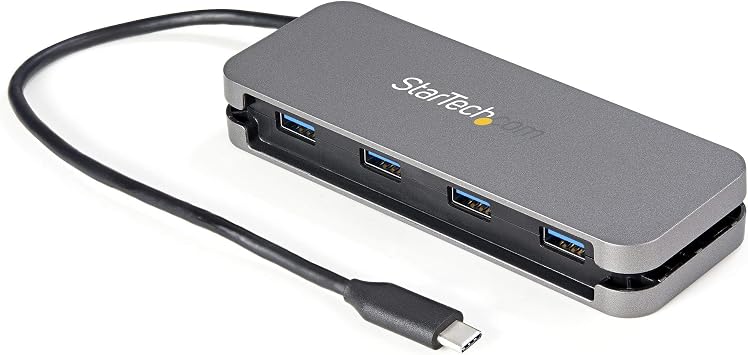
Choose the longer 61 cm attached cable when the USB-C host sits on a riser or away from the accessories. It adds four USB-A data ports and is bus powered; it does not add HDMI, USB-C device ports, fast-charge ports, or PD pass-through.
StarTech H5C4A-USB-HUB-2
$19.99
Official source checked 2026-10-09: 4 USB-A ports, USB-C host connection, 5Gbps class, bus powered, 61 cm cable.
Choose the shorter 28.5 cm attached cable with cable management when the hub stays beside the laptop. It adds four USB-A data ports and is bus powered; it does not add HDMI, USB-C device ports, fast-charge ports, or PD pass-through.
StarTech HB30CM4AB
$37.99
Official source checked 2026-10-09: 4 USB-A ports, USB-C host connection, 5Gbps class, bus powered, 28.5 cm cable.
Both choices keep the scope narrow: USB-A accessory expansion. Their selected Amazon offers, stock, delivery, and price can change, so verify the exact listing before buying. They are not evidence that a particular laptop supports a display, charging input, or every attached device load.
Sources: StarTech H5C4A-USB-HUB-2 specifications and StarTech HB30CM4AB specifications.
Why buying the dock first often fails
A hub can add physical ports but cannot create an undocumented video signal from a host port. The frustrating version of this purchase is predictable: the hub’s HDMI socket looks right, charging works, USB accessories work, and the monitor still does not. That is why the host-output check comes before comparing hub prices or outlet wattage.
Keep charging and display questions separate
Pass-through charging may matter to a laptop routine, but it is a different question from external-display output. A setup can have enough charger capacity and still lack the required video path; it can also have display output but need a separate check of charging limits. Separating those constraints makes the final product choice much narrower and more reliable.
When the host port is confirmed but the question becomes whether one wall charger can power both a laptop and portable screen, use the portable-monitor USB-C power-budget guide. It separates charger output, monitor reserve, host charging, cable capability, and laptop demand.
FAQ
- Q: Does a USB-C charging port always work with an HDMI hub?
A: No. Charging and video are distinct capabilities. Confirm external-display output in the laptop’s official documentation. - Q: Does HDMI on a dock guarantee my monitor will work?
A: No. The host video path, cable, monitor input, adapters, and required display mode all matter. - Q: Is Thunderbolt or USB4 enough information?
A: It is a useful starting point, but still check the exact laptop model, port specification, display support, and the selected dock’s documentation.
Once the host port is confirmed to carry the right video signal, a portable second screen can be evaluated with this MNN 15.6-inch Portable Monitor for a Laptop Travel Desk After You Verify Video Output and Power.
For a renewed MacBook purchase where ports matter to the desk setup, use Renewed MacBook Air M1 16GB/256GB When Memory Matters More Than New-Model Timing.
For a desk where port behavior changes the purchase decision, use Renewed MacBook Air M2 16GB/256GB When Delivery Timing Is Part of the Purchase.